How to Get cURL Commands from Google Chrome
Easily extract network requests as cURL commands from Chrome DevTools for API testing, debugging, and development
Table of Contents
Introduction
When developing, testing, or debugging applications related to APIs, it's crucial to easily obtain the exact details of HTTP requests. Google Chrome's built-in developer tools provide a simple method to export any network request as a cURL command, which is extremely useful for API testing and development.
cURL commands are a powerful tool that can send various HTTP requests, including GET, POST, PUT, DELETE, and more, and support custom headers, cookies, authentication, and other parameters. Getting cURL commands from Chrome allows you to precisely replicate the requests sent by the browser, including all headers and cookies, which is invaluable for troubleshooting and creating API documentation.
Steps to Get cURL Commands from Chrome
Open the Network Panel in Developer Tools
In Google Chrome, click the menu button in the top-right corner, select "More Tools" > "Developer Tools", or use the keyboard shortcuts:
- Windows/Linux:
Ctrl + Shift + IorF12 - Mac:
Cmd + Option + I
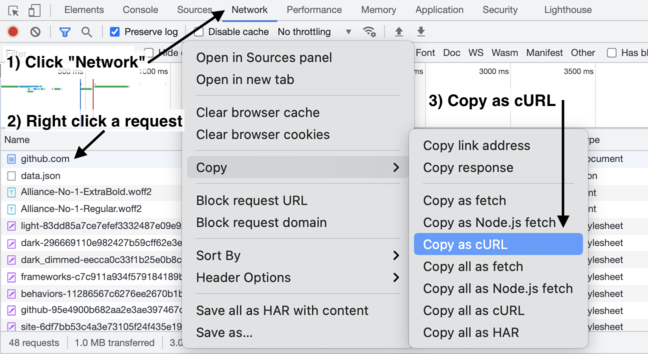
Then click on the "Network" tab.
Right-click (or Ctrl+click) on a Request
Refresh the page or perform the action you want to capture, then locate the relevant network request in the Network panel. Right-click (or Ctrl+click on Mac) on that request.
Click "Copy" > "Copy as cURL"
In the context menu that appears, select "Copy", then choose "Copy as cURL". This will copy the complete cURL command for the selected request to your clipboard.
Use in the cURL Converter Tool
Now you can paste the copied cURL command into our online cURL converter tool to transform it into code in any programming language.
Tips and Precautions
Security Warning
Copied cURL commands may contain sensitive information such as cookies or authorization tokens. Be careful when sharing commands or using them in documentation. If you need to share cURL commands, make sure to remove or replace sensitive information.
Request Headers
By default, "Copy as cURL" includes all request headers. This is useful for precisely replicating requests, but can result in very long commands. When using the commands, you can remove unnecessary headers as needed.
Simulating Mobile Devices
If you need to get requests from mobile devices, you can use Chrome's device emulation feature (click "Toggle device toolbar" in the developer tools or press Ctrl+Shift+M) to simulate a mobile device, then capture the cURL commands.
Practical Examples
Here are some common use cases for getting cURL commands from Chrome browser:
Example 1: API Debugging
When an API returns an error, you can copy the exact request made by the browser and manually execute it using the cURL command in a terminal to see detailed response and error information.
curl -X GET "https://curl-to.com/api/users" -H "Authorization: Bearer token123" -H "Accept: application/json"Example 2: Creating Automation Scripts
You can copy a complex form submission request as a cURL command, then use our converter tool to transform it into Python or JavaScript code for creating automation scripts.
Example 3: Testing API Authentication
Copy a request that includes authentication information, use the cURL command to test if the API correctly handles authentication, then convert it to code in your preferred programming language.
Try Converting Your cURL Commands Now
Now that you know how to get cURL commands from Chrome browser, why not try converting them to your favorite programming language?
Go to Converter Tool